Latest update: 19 November 2026 - 2 min read
What’s new in Driversnote: product updates and release notes
We’re always working on Driversnote, adding new features and improving the ones you already use, so you get more out of it. It can be hard to keep up with every change, so this page collects them in one place, newest first.
November 2026
Edit a whole month of trips at once, on your computer
Some jobs are quicker on a big screen. Driversnote Desktop is Driversnote in your web browser, with the same trips and locations as your app. Use it to edit a month of trips in one go, search by date, address or vehicle, add all your locations from one list, or check a report on a full screen before you export it.
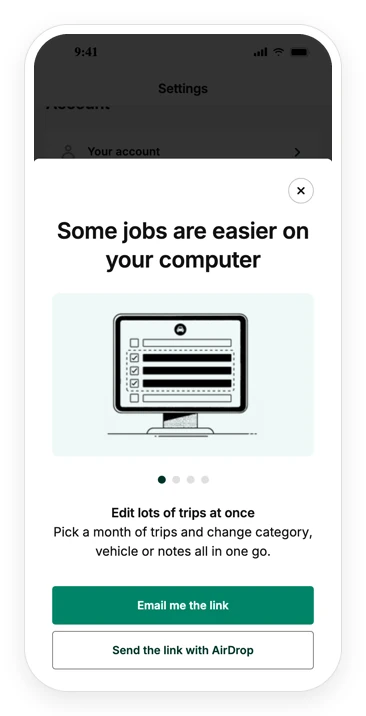
Open Settings → Driversnote Desktop in the app and email yourself a link that signs you in, so your trips are already there. You can also send the link with AirDrop or Quick Share.
- A nudge when it helps. After you add, edit or delete three locations or trips in a day on Wi-Fi, a one-time sheet offers to send you the link.
- Handoff (iPhone). On a Mac signed in to the same iCloud account, you can pick up the page you’re on, such as All trips or Locations, in Safari.
Let your saved locations classify your trips
Save your Home and Office once, and set a trip type on the places you visit often. Driversnote then knows which trips are business and which are personal, so you have fewer trips to classify by hand.
Find them in Settings → Locations: Home and Office sit at the top and stay in sync with the web. Trips between business locations are classified as business automatically, and trips to or from a personal location as personal.
Ask your AI assistant about your mileage
Connect Driversnote to your AI assistant and ask about your trips in your own words: how many business trips you made last quarter, which trips still need a review, or your report for last month. The assistant works with your own trips and reports, so the answers come from your logbook.
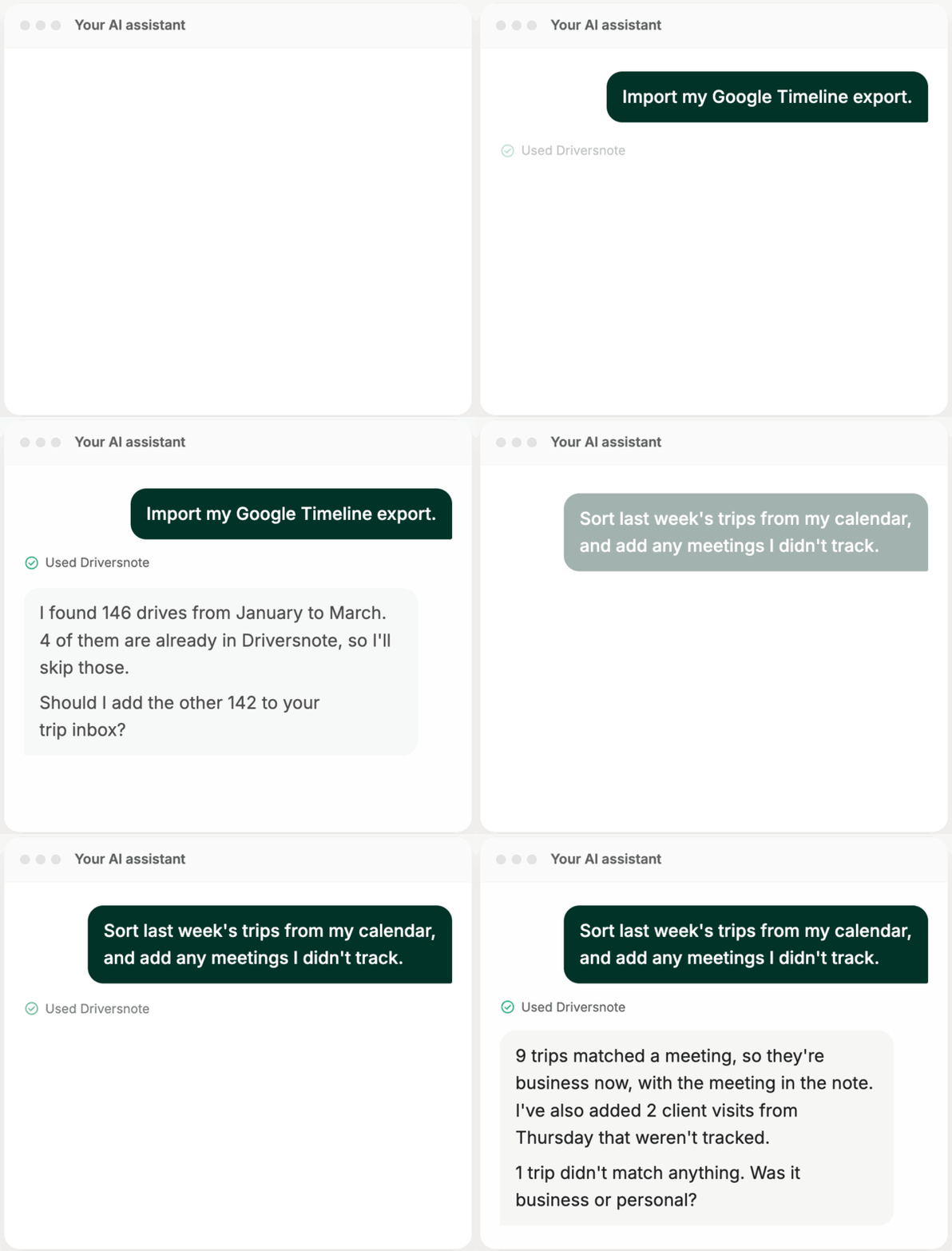
It works with ChatGPT, Claude and other assistants that support connectors (MCP). Follow the setup steps to add Driversnote as a connector, then click Connect and sign in to Driversnote. You sign in on Driversnote, so your password never reaches the assistant. Some assistants only offer connectors on their paid plans.
Other smaller improvements
- Choose whether your trip shows on your Lock Screen (iPhone). While you drive, Driversnote can show the trip on your Lock Screen and in the Dynamic Island, with the distance and amount so far. If you’d rather keep your Lock Screen clear, turn it off in Settings → Notifications, and back on whenever you like. The Active Trip widget on the Home Screen is gone, but your trip still shows on the Lock Screen.
- Made for iPhone Duo. Folded, the tab bar and the trip buttons sit in the strip at the side of the screen, so your trips and maps get the full height. Unfolded, the Inbox, All trips and trip details sit in a column in the middle of the screen, and Reports uses the full width. Maps and sheets resize as you fold and unfold.
- Opens faster. Driversnote no longer waits for downloads when it starts, so it opens faster on a slow connection, and it responds sooner when you come back to it.
- Invite friends with 30% off (Pro). When you share your link from Settings → Refer & earn, your friend lands on a page with your name and their 30% off. We also email you when they join, so you can help them get started.
FAQ
In the app, go to Settings → Driversnote Desktop and email yourself a link. The link signs you in, so your trips are already there. On iPhone you can also send it with AirDrop, and on Android with Quick Share.
Go to Settings → Locations and set Home and Office. They stay in sync with the web. You can also set a trip type on your other locations, so trips between business locations are classified as business automatically.
Yes. Driversnote works with ChatGPT, Claude and other AI assistants that support connectors (MCP). Add Driversnote as a connector, sign in to Driversnote, then ask about your trips and reports in your own words. Some assistants only offer connectors on their paid plans.
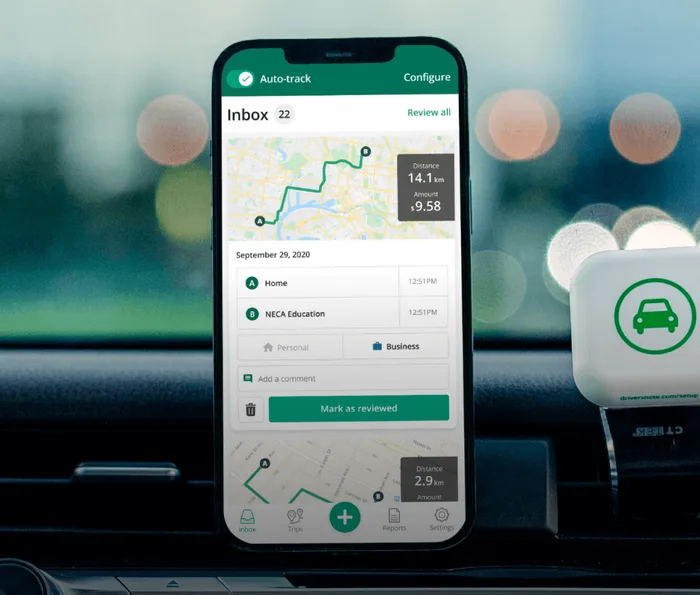
Tired of logging mileage by hand?
Effortless. IRD-compliant. Liberating.
 Auto-track trips
 Classify trips
 IRD-compliant reports